Get Your Website Holiday Ready

Customers start searching for deals and holiday hours weeks before Thanksgiving, and search engines decide what to show them earlier still. That makes October, not late November, the month your website gets holiday-ready. This guide walks through the five jobs that matter: mapping the season's dates, building a sale page at an address you reuse every year (Google's own documented advice), syncing holiday hours across your site and Google, linking it all from the homepage, and freezing changes before the rush. Each step ends with a check.
Black Friday 2026 lands on November 27, with Small Business Saturday and Cyber Monday right behind it. Most small businesses touch their website the week of Thanksgiving: a banner goes up, hours change, maybe a sale page appears. By then the search battle is already over. Google's own guidance for sale pages says to publish them early so they can be found and indexed, and SEO practitioners commonly put the number at six to eight weeks before peak demand. Counting back from late November, that window is open right now, in October.
The good news: holiday readiness for a small business website is not a redesign. It is five specific jobs, most of them under an hour. Here they are in order, each with a way to check it worked.
Step 1: Put the whole season on one list
Start with the fixed dates, then add your own. The fixed ones for 2026:
| Moment | 2026 date |
|---|---|
| Thanksgiving | Thursday, Nov 26 |
| Black Friday | Friday, Nov 27 |
| Small Business Saturday | Saturday, Nov 28 |
| Cyber Monday | Monday, Nov 30 |
| Carrier shipping cutoffs | Mid-December, carrier dependent |
| Christmas | Friday, Dec 25 |
Now add the deadlines only you know: your last shipping day, the last date you take custom orders, the last bookable appointment before you close, the days you are closed. Every date on the list needs a matching change on your website: a page, a banner, or an hours update, with a date you will make it.
Check it worked: for each date, you can point at the thing on your site that will announce it, and the day you will publish it. A date with no owner is where December surprises come from.
Step 2: Build the seasonal page now, at an address you keep
If you run any kind of sale or seasonal offer, it deserves its own page, and Google has published exactly how it wants these built. The two rules most businesses miss: create the page well before the sale so it can be crawled and indexed in time, and use a recurring URL, like /sale/black-friday, not /sale/2026/black-friday. The same address, reused every year, accumulates search history instead of starting from zero each November. Google's Black Friday page guidance and its follow-up on deal pages also recommend putting the event name in the page title and describing the offer in actual text, because text in a banner image is invisible to search.
Not sure of the final discount yet? Publish the page anyway with general information ('Our Black Friday sale returns November 27, sign up to hear first') and update it when the details are locked. An indexed page you edit beats a perfect page published too late.
Check it worked: a week after publishing, search Google for site:yourdomain.com with your sale page's address. If it appears, it is indexed and ready to rank.
Step 3: Update your hours everywhere people check
During the holidays, 'are they open right now' is the most common question your business gets asked, and it gets asked in two places: Google and your website. Cover both. On Google, set special hours in your Business Profile for every holiday date, including the days you keep normal hours (confirming them stops Google showing visitors a 'hours may differ' warning). On your site, a simple holiday page beats scattered mentions. While writing this post we built one on our demo pottery studio site:
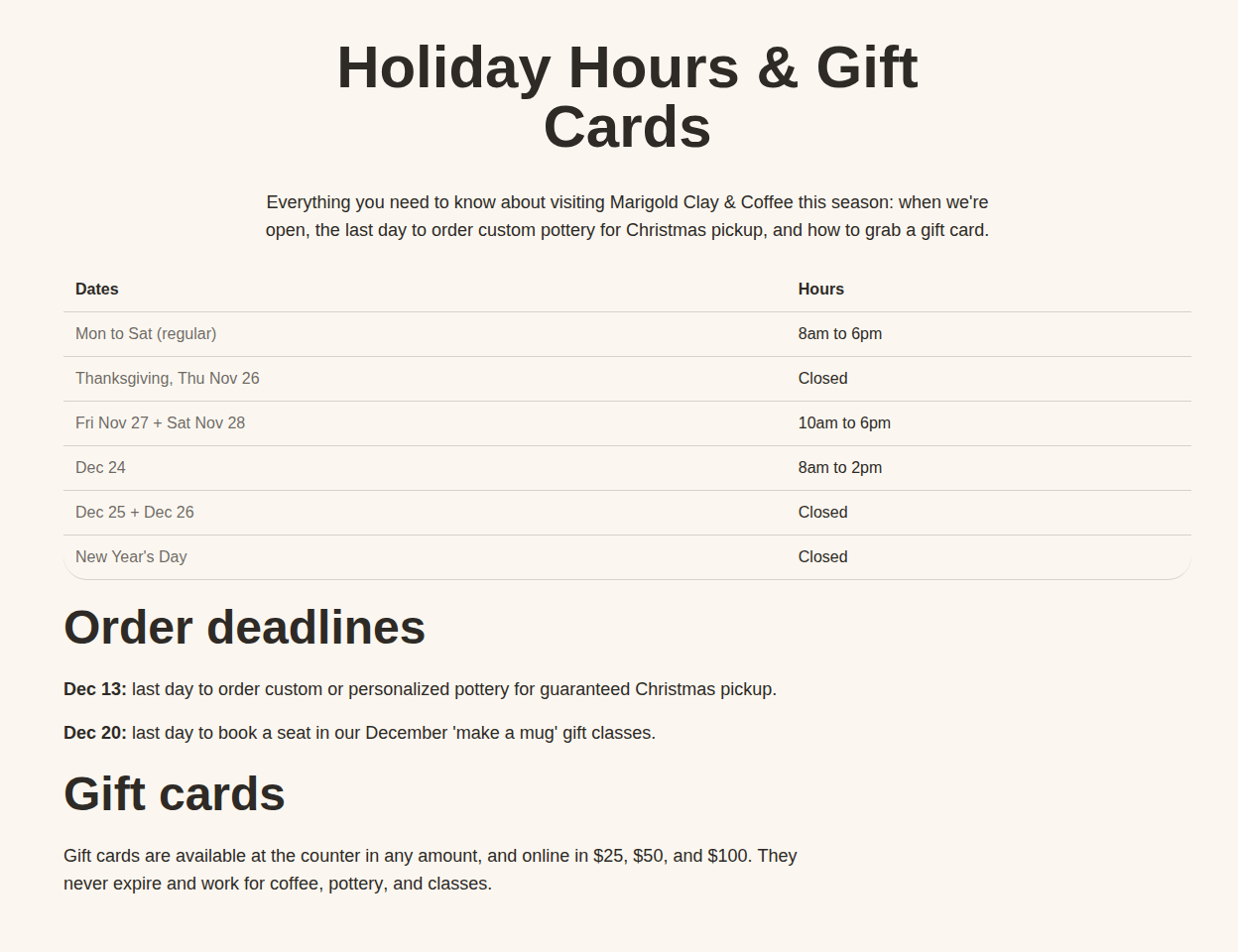
One hours table, the order deadlines from Step 1, and gift card information, which quietly matters: gift cards are the perfect answer for every last-minute shopper who missed your shipping cutoff.
Check it worked: search your business name on your phone, as a customer would. The hours Google shows and the hours your site shows must agree, including for Thanksgiving week.
Step 4: Link it from your homepage
Google's guidance is explicit on this point: link the seasonal page from your homepage so both visitors and crawlers find it fast. Prominence is a ranking signal, and a page buried three clicks deep reads as unimportant. A banner across the top of the homepage or a temporary navigation item both work. This is a two-line change on most sites, and it is also the change people forget to reverse, so put a January reminder in your calendar now: remove the banner, keep the page.
Check it worked: open your homepage on a phone and count clicks to the seasonal page. The answer should be one.
Step 5: Freeze, then test like a customer
E-commerce teams schedule a code freeze about two weeks before Black Friday, roughly November 13 this year, and the logic applies to a five-page local business site too: every change in peak season is a chance to break the site in the week it costs the most. No theme switches, no redesigns, no new plugins or tools after the freeze. Content edits (prices, dates, stock) stay fine. This is one place platform choice shows: StoryPress sites have no plugins or themes to update, so a freeze simply means you stop restyling, and there is nothing that can update itself into a broken checkout at 2am on Black Friday.
Then run the customer journey yourself, on a phone, on mobile data:
Search your business name, tap through to your site.
Find the sale or holiday page in one tap from the homepage.
Submit your contact form, book the appointment, or place a small test order.
Confirm the reply or confirmation email actually arrives.
Check it worked: you completed the whole journey without touching a laptop. If any step annoyed you, it is losing you customers who care less than you do.
Keep the machine for the slow season
Do
Publish or refresh your seasonal page by mid October, even if the exact offer is not final.
Reuse the same page address every year so it keeps its search history.
Write the dates and the offer as text on the page, not only inside a banner image.
Update your Google Business Profile special hours the same day you update the site.
Don't
Create a brand new page for each year's sale and delete it in January.
Announce the sale only on social media and leave the website saying nothing.
Leave December hours in your footer until February. Stale hours read as a closed business.
Redesign your site, switch themes, or add new tools the week of Thanksgiving.
Everything above works in reverse, too. January is a slow season for most local businesses, and the same recurring-page trick applies: an off-season offer page ('January deep-clean special', 'off-peak booking rates') built once, reused every year, linked from the homepage when it is live. The businesses that look organized in December are the ones that treat seasonal pages as permanent infrastructure, not annual scrambles.
“Search engines meet your holiday season weeks before your customers do. Publish like it.”
Five jobs: one list of dates, one page at a permanent address, hours that agree everywhere, one homepage link, one freeze-and-test. Start this week and you will spend late November serving customers instead of fixing the website, which is exactly where the money is.
One practical website guide, twice a week. No panic, no jargon.

Customer Reviews That Actually Sell
Nearly every potential customer now reads reviews before choosing a business, and a rising share will not look below 4.5 stars. Meanwhile the typical small business site parks its best praise on a testimonials page nobody opens, with no markup machines can read. This guide works both sides: how to collect reviews without breaking platform rules, which ones persuade, where on the page they change minds, and the review schema that lets Google and AI assistants read them, validated live while we wrote it.