Set Your Google Holiday Hours Before December

December is the one month your Google listing gets checked more often than your website. Searchers want a single answer: are you open right now, and until when. This checklist walks through the Business Profile hours editor, the special hours that cover Thanksgiving through New Year's Day, the warning label Google adds when you skip them, and the free profile post that puts your schedule in front of everyone who finds you on Maps. Twenty minutes now saves a December of phone calls and doorway turnarounds.
It is Christmas Eve, 3:40 in the afternoon, and someone four blocks away needs one more gift. They search your shop's name, glance at the hours on your Google listing, and decide in about three seconds: drive over or give up. If the listing says you close at 7 but you actually locked the door at 2, you did not just lose a sale. You bought the review that starts with "drove twenty minutes for nothing."
Google knows that regular hours stop being true around holidays. On official holidays it does something many owners have never seen from the outside: unless you confirm your hours for that date, it shows a warning on your profile telling customers your hours might differ. Your carefully set schedule turns into a shrug exactly on the days with the most foot traffic at stake.
Here is what that looks like from the customer side right now, two weeks before Thanksgiving. This Brooklyn hardware store's listing shows a complete, tidy week. What it does not show is whether the store opens on Thursday the 26th, and until the owner confirms it, customers are left to guess.
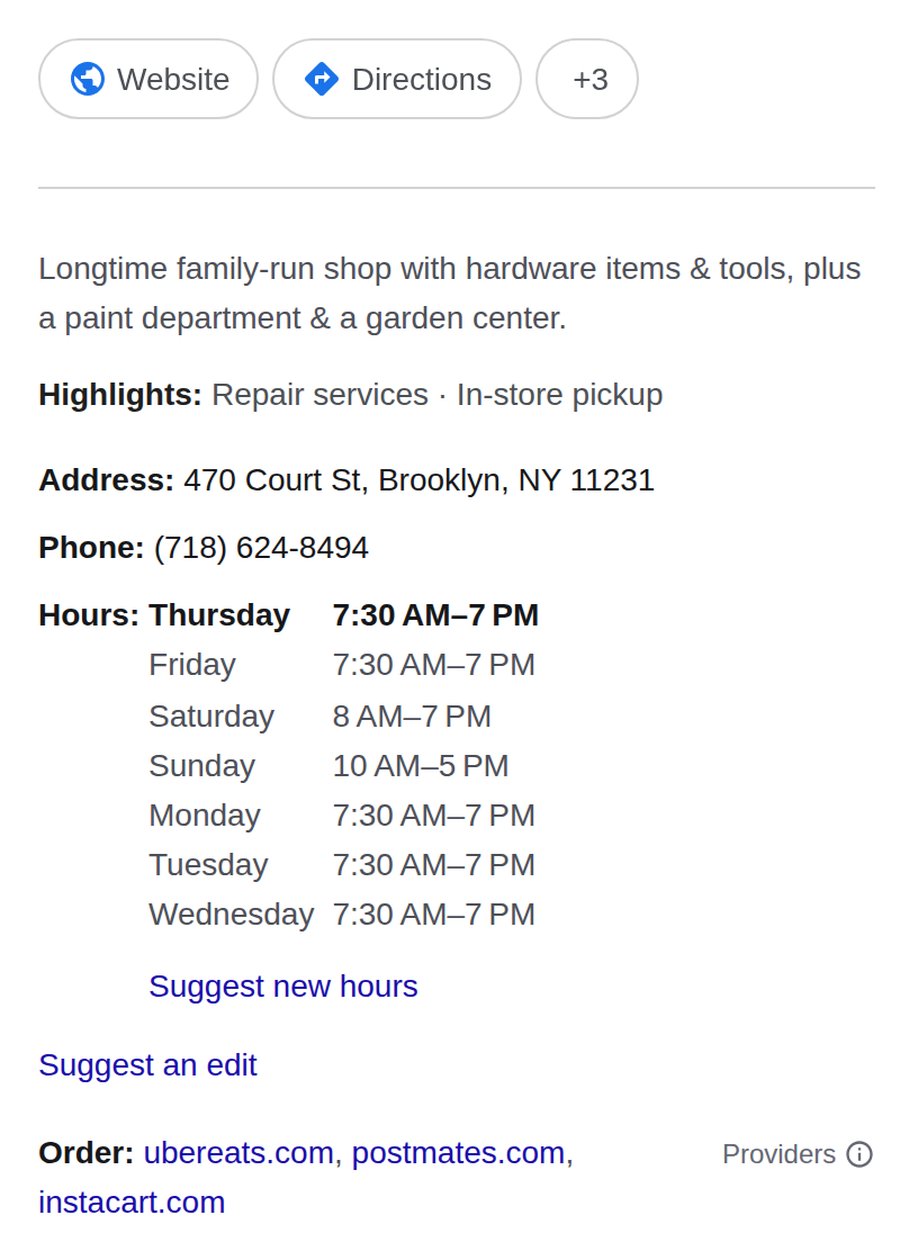
The two labels a holiday can give you
On the holidays Google tracks for your country (Thanksgiving, Christmas, New Year's Day and the rest of its official list), your profile ends up in one of two states. If you set special hours, customers see your confirmed holiday schedule. If you did not, they see the warning next to your regular hours. Google's own help page recommends confirming hours for official holidays even when they match your normal schedule. A confirmed time is an answer; a warning is a question mark.
Step 1: Open the hours editor
You manage your Business Profile directly inside Google. Signed in with the account that runs the profile, search your business name on Google, then select Edit profile, then Hours. The same works in the Google Maps app on your phone.
How to check it worked: if you do not see an Edit profile button when searching your own business name, you are either signed in with the wrong Google account or the profile has not been verified yet. Fix that first; nothing below is possible without it.
Step 2: Confirm every holiday date
In the Business hours section, next to Special hours, select Edit.
Google suggests upcoming official holidays. Select Review next to each date.
Closed that day? Leave the Closed box checked. Open? Uncheck it and enter the real opening and closing times.
For days Google does not suggest, like Black Friday or an early close on December 24, select Add a date and enter it yourself.
Select Save.
Three rules from Google's documentation worth knowing before you start:
Special hours are for temporary changes and closures of up to 6 days in a row. If you close for 7 days or more, mark the business as Temporarily closed instead.
Special hours only show if your profile is set to Open with main hours. A profile with no main hours has nothing to attach holiday dates to.
Your regular weekly hours stay untouched. Special hours apply to their dates and then expire on their own.
How to check it worked: search your business name in a private browser window and expand the hours. Your confirmed dates appear in the list, and on the holiday itself the warning is replaced by a holiday hours label.
For a typical US business, these are the dates worth confirming this season:
| Holiday | 2026 date | What to do |
|---|---|---|
| Thanksgiving | Thu, Nov 26 | Review the suggested date; confirm closed or set reduced hours |
| Black Friday | Fri, Nov 27 | Not on Google's list; use Add a date if your hours change |
| Christmas Eve | Thu, Dec 24 | Early close is common; set the real closing time |
| Christmas Day | Fri, Dec 25 | Confirm it, even if you are simply closed |
| New Year's Eve | Thu, Dec 31 | Early close is common; set the real closing time |
| New Year's Day | Fri, Jan 1 | Confirm it, even if you are simply closed |
Step 3: Post the schedule where people actually look
Your Business Profile can also publish posts: updates, offers and events that appear right on your listing in Search and Maps. One update in early December with your full holiday schedule does two jobs. It answers the question before anyone digs into your hours, and it shows the profile is actively managed. Add a photo, list the dates that differ, and point the button at your website. Posts can be scheduled ahead of time, so you can write it this week and let it publish the Monday after Thanksgiving.
Step 4: Make your website agree with your listing
A customer who sees one schedule on Google and another on your contact page trusts neither. Whatever you confirm in your profile, mirror it on your site the same day. Our holiday website checklist covers the full site side sweep. On a StoryPress site the hours update is a one sentence job: tell Claude "add a note to the contact page that we close at 2 p.m. on December 24" and the edit is done, with no plugin or page builder session in between.
Do and don't, on one screen
Do
Confirm every official holiday, even when your hours do not change
Add dates Google does not suggest, like Black Friday
Set special hours as soon as you know your plans; they wait quietly until the date
Schedule one profile post with the full holiday schedule
Don't
Edit your main weekly hours for a one day change; that is what special hours are for
Mark the business Temporarily closed for a long weekend; that status is for closures of 7 days or more
Wait until the week of the holiday; customers plan their trips days ahead
Let your website and your listing tell two different stories
“A confirmed holiday time is a promise. A warning label is a question mark, and customers do not drive across town for question marks.”
The twenty minute version
Open Edit profile, then Hours, then Special hours. (2 minutes)
Review every suggested holiday and add Black Friday plus your early close days. (10 minutes)
Schedule one December post with the schedule and a photo. (5 minutes)
Mirror the hours on your website's contact page. (3 minutes)
Then look up your own listing from a private window, the way a customer would. If the hours answer the question before anyone has to call, you have already beaten most of the businesses on your block to it.

Sell Gift Cards Online Without a POS System
Every December the counter question returns: do you do gift cards? For a lot of salons, studios and tutors the honest answer is no, because somewhere along the way gift cards got filed under point-of-sale hardware. They are not hardware. A working gift card setup is a way to take money, a unique code, and a ledger of balances, and all three run fine from a normal website. This guide prices cards people actually want to give, compares three no-POS ways to sell them with real fees, covers the federal five-year expiry rule, and ends with a test run to do before you announce anything.